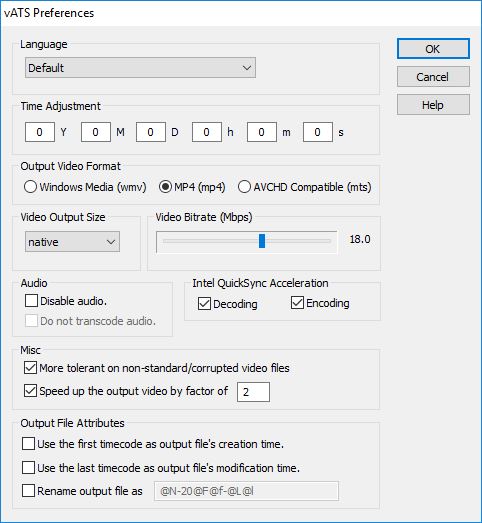
- From the Language pull-down list to select the language to use
The language options are Numeric, English, Chinese, Default, Czech, Danish, Dutch, Finnish, French, German, Greek, Hungarian, Italian, Japanese, Korean, Norwegian, Polish, Portuguese, Romanian, Russian, Spanish, Swedish. The Default option would use the current language setting of your computer.
- Use the Time Adjustment section to adjust the time stamp of the AVCHD file
This is useful if you traveled to a different time zone and took the video, but you forgot to adjust the clock of the camcorder. This option allows you to add/subtract years/months/days/hours/minutes/seconds to the time code on the file.
The adjustment ranges are: Years: [-50, 50], Months: [-11, 11], Days: [-16, 16], Hours: [-23, 23], Minutes: [-59, 59], Seconds: [-59, 59].
- Use the Output Video Format section to select the output video format
When "Windows Media (wmv) is selected, the output video is in Windows Media format, output files have .wmv extension.
When "MP4 (mp4) is selected, the output video is in MPeg4 (MP4) format, output files have .mp4 extension.
When "AVCHD Compatible (mts) is selected, the output video is in AVCHD Compatible format, output files have .mts extension.
- Use the Video Output Size section to select the output video size
The size options are 480x270, 640x360, 800x450, 960x540, 1280x720, 1600x900, 1920x1080, and native . The Default option is 960x540.
Note: When the output size is 'native', the output resolution will be the same as the input resolution.
- Use the Video Bitrate (Mbps) section to select the output video quality
The valid selection range is from 0.5 Mbps (mega bits per second) to 30 Mbps. Higher bit rate usually leads to better video quality. On the other hand, higher bitrate leads to larger output file size.
Note: When you select a Output Size, vATS changes the default setting of the Bitrate that is appropriate for the output video size. This selection typically gives adequate video quality.
- Use the Audio section to control audio in the output
Check the box next to "Disable audio" to disable audio output. The stamped output file will not contain audio.
Check the box next to "Do not transcode audio" to NOT transcode the audio when generating the stamped output file. vATS will simply copy the audio from the original AVCHD file to the output file. By default, vATS transcodes the audio when generating the output file.
Note: Some video editing softwares do not like the transcoded audio in the stamped file. If this is the case with the software you are using, then try to NOT transcode the audio.
Note: When the selected Output Video Format is "AVCHD Compatible", the Audio selection is disabled. "AVCHD Compatible" always copies the audio from the original AVCHD file to the output file (i.e. audio is NOT transcoded).
- Use the NVIDIA GPU Acceleration (if supported NVIDIA GPU is available)/Intel QuickSync Acceleration (if supported Intel HD Graphics 3000/4000 is available) section to select whether or not to use NVIDIA GPU/Intel QuickSync for decoding/encoding.
If the computer has a NVIDIA graphics card (GPU) that is capable of accelerating video decoding/encoding, the stamping could
be accelerated using it.
Or if the computer has a Intel i5/i7 CPU with HD Graphics 3000/4000 that is capable of accelerating video decoding/encoding using
QuickSync, the stamping could
be accelerated using it.
Note: Go to NVIDIA.com to check if your NVIDIA GPU supports CUDA. As a rule of thumb, if the NVIDIA graphics card is manufactured after 2007, it is likely capable of accelerating video decoding/encoding. You will need to install latest driver to take advantage of this feature. Any driver newer than version 275.33 (5/25/2011) should work. Download the latest driver at here.
Note: Intel CPU i5 and i7 with HD Graphics 3000/4000 are capable of accelerating video decoding/encoding using Intel's QuickSync technology. Check if your computer is capable of this at here and update the driver if necessary.
vATS tries to detect if your graphics card is capable of accelerating video decode/encode. This section will be disabled if no such graphics card is detected, or if the driver version is too old.
- Check the More tolerant on non-standard/corrupted video files box to make vATS recognize some non-standard, incorrectly formatted, or corrupt AVCHD video files. This may help if you encounter the error "xxx is not AVCHD format video file" on some video files. This may make vATS less stable, so enable this feature only if necessary.
- Check the Speed up the output video by factor of box to make vATS generate the stamped video files that can be played back faster than the normal speed. This is done by skipping frames in the stamped output video files. You may choose a speed up factor of 2 - 10. For example if the factor is 2, then vATS skips every other frame in the output video. Such output video is played back twice as fast as the normal speed. Similarly, if the factor is 10, the output video plays back 10X faster than normal speed.
- Use the Output File Attributes section to set the time attributes of the stamped AVCHD file
Check the first box to make the stamped file's creation time attribute as the first valid timecode of the file
Check the second box to make the stamped file's modification time attribute as the last valid timecode of the file
Check the third box to rename the stamped file to a new name and then specify the format of the new name.Format codes for file name:
@N Original file name without .avi extension (e.g. testFile for original file name testFile.avi). @F Date of the first frame of the file in the form of YYMMDD. @f Time of the first frame of the file in the form of hhmmss. @L Date of the last frame of the file in the form of YYMMDD. @l Time of the last frame of the file in the form of hhmmss.
Examples:
format original filename new filename newFile-20@F-@f-@l oldfile.avi newFile-20041103-110812-152241.avi @N-@F@f oldfile.avi oldfile-041103110812.avi
- Click OK button to save the changes and exit the dialog.
- Click Cancel button to discard the changes and exit the dialog.
- Click Help button to bring up this Help page.